How to Unpair Apple Watch (4 Methods, No Phone? No Problem)
You’ve worn your Apple Watch for months, maybe years. Now it’s time to hand it off, trade it in, or start fresh with a new iPhone. Unpairing is the clean break that resets everything — and the process is simpler than you might expect. Apple’s official method takes just four steps through the Watch app and automatically backs up your data before wiping the watch.
Standard Unpairing Steps: 4 ·
Methods to Unpair: 3 (via iPhone, directly on watch, force reset) ·
Activation Lock Removed: Yes (if signed into iCloud) ·
Data Backup Created: Automatic (if paired with iPhone)
Quick snapshot
- Open Watch app on iPhone (Apple’s official support)
- Tap All Watches (Apple’s official support)
- Tap info icon next to your watch (Apple’s official support)
- Tap Unpair Apple Watch (Apple’s official support)
- Open Settings on Watch (Apple’s official support)
- Go to General > Reset (Apple’s official support)
- Tap Erase All Content and Settings (Apple’s official support)
- Follow prompts to confirm (Apple’s official support)
- Go to iCloud.com/find (Apple’s iCloud support)
- Sign in with Apple ID (Apple’s iCloud support)
- Click All Devices, select your Watch (Apple’s iCloud support)
- Click Erase Apple Watch, then Remove from Account (Apple’s iCloud support)
- Contact previous owner to unpair and remove Activation Lock (Apple Support Community discussion)
- Or ask for Apple ID credentials (Apple Support Community discussion)
- Visit Apple Store with proof of purchase if necessary (Apple Support Community discussion)
The pattern is consistent: every method removes data, but only the iPhone route removes Activation Lock and preserves your backup — that distinction matters when choosing the right approach for your situation.
| Attribute | Value |
|---|---|
| Standard Unpairing Steps | 4 |
| Methods to Unpair | 3 primary methods |
| Activation Lock Removed | Yes (requires Apple ID) |
| Data Backup | Automatic if paired with iPhone |
| Watch Becomes Unpaired | Yes |
| Watch Resets to Factory | When erasing all content |
How do I unpair an already paired Apple Watch?
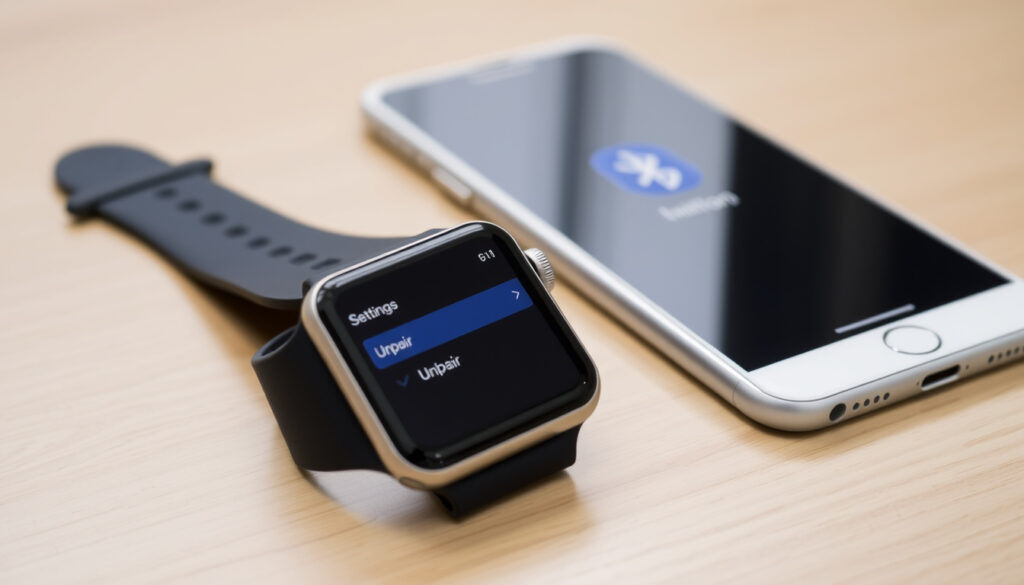
Step-by-step unpairing via the Watch app
- Keep your Apple Watch and iPhone close together.
- Open the Watch app on your iPhone and go to My Watch tab.
- Tap All Watches at the top, then tap the info button (i) next to your watch.
- Scroll down and tap Unpair Apple Watch. (Apple’s official support)
What happens to your Apple Watch data?
- An automatic backup of your watch data is created on your iPhone before unpairing.
- Data includes activity, health, settings, watch faces, and app layouts.
- The watch is restored to factory settings. (Apple’s support video)
How to disable Activation Lock during unpairing
- You’ll be prompted to enter your Apple Account password.
- This step disables Activation Lock, which prevents anyone else from pairing the watch. (Apple’s official support)
- If you forget your Apple ID password, you can reset it before proceeding. (Apple’s iCloud support)
Why this matters: Unpairing with the iPhone is the only method that both backs up your data and fully disables Activation Lock in one seamless action. If you have the phone, it’s the path of least resistance.
How do I unpair my Apple Watch without my phone?
Using the Settings app on the Watch
- On your Apple Watch, open the Settings app.
- Navigate to General → Reset.
- Tap Erase All Content and Settings. (Apple’s official support)
Erase all content and settings
- Confirm the action by entering your watch passcode (if prompted).
- The watch will erase all data and restore to factory condition.
- This process does not remove Activation Lock — the watch remains linked to your Apple ID. (Apple’s support video)
What if you don’t have the paired iPhone?
- You can still erase the watch directly, but you’ll need to later remove it from your iCloud account to fully disable Activation Lock.
- Log in to iCloud.com/find, select your Apple Watch, and click Remove from Account. (Apple’s iCloud support)
- If you can’t log in, you’ll need to contact Apple Support with proof of purchase. (Apple Support Community discussion)
“Enter your Apple Account password to disable Activation Lock, then tap Unpair.”
— Apple Support (official device documentation)
The trade-off: Erasing on the watch is fast and iPhone-independent, but it leaves Activation Lock in place. That means the watch can’t be paired to a new Apple ID until you go to iCloud or get Apple’s help.
How do I force an Apple Watch to unpair?
When to use force unpair
- When the watch is unresponsive or stuck on the Apple logo.
- When you’ve lost or replaced your iPhone and can’t access the Watch app.
- When the previous owner is unreachable and you need to start fresh.
Force reset procedure without iPhone
- First, force restart the watch: press and hold both the side button and Digital Crown for at least 10 seconds, then release when the Apple logo appears.
- After the restart, go to Settings → General → Reset → Erase All Content and Settings. (Apple’s official support)
- If you can’t navigate the watch, use the iCloud method described above.
Differences between force unpair and normal unpair
- Force unpair (direct erasure) does not create a backup. (Apple’s support video)
- Normal unpair (via iPhone) creates a backup and removes Activation Lock.
- Force unpair retains Activation Lock, meaning the watch is still tied to the original Apple ID.
Force unpair is a last-resort because it leaves Activation Lock untouched. If you later try to pair the watch, you’ll still need the original Apple ID — or a receipt and an Apple Store visit.
What do I do if my Apple Watch is paired to a different phone?
Contacting the previous owner
- Ask the previous owner to unpair the watch from their iPhone using the Watch app.
- They must enter their Apple ID password to disable Activation Lock.
- This is the cleanest way to transfer ownership. (Apple Support Community discussion)
Unpairing from the watch itself
- If you can’t reach the owner, you can erase the watch directly via Settings → General → Reset → Erase All Content and Settings.
- However, Activation Lock will remain — the watch will still require the previous owner’s Apple ID. (MacRumors forum)
What if Activation Lock is enabled?
- You need the previous owner’s Apple ID and password to disable it.
- If that’s impossible, Apple can remove Activation Lock only with original proof of purchase (receipt, invoice, or box). (Apple Support Community discussion)
- Take the watch to an Apple Store or contact Apple Support to start the removal process.
A watch that’s still Activation Locked is a brick for anyone but the original owner. Always confirm the seller has unpaired the watch and removed the lock before buying used.
Can I erase my Apple Watch from my phone if it is not fully paired?
Erasing a watch during initial setup
- If the watch is mid-setup and still showing the pairing animation, open the Watch app on your iPhone.
- Cancel the pairing process by tapping Cancel Pairing.
- The watch will return to its unpaired state. (Apple’s official support)
Using iCloud to remove the watch
- Sign in to iCloud.com/find with your Apple ID.
- Click All Devices and select the watch (even if not fully paired).
- Click Erase Apple Watch, then Remove from Account. (Apple’s iCloud support)
Limitations of partial pairing
- Even a partially paired watch can have Activation Lock enabled if it’s associated with an Apple ID.
- Erasing via iCloud may still leave the watch’s Activation Lock in place, but the iCloud removal step should clear it.
- If you can’t remove it online, you’ll need to contact Apple Support. (Apple Support Community discussion)
“Erasing directly on the watch does not create a backup and does not remove Activation Lock.”
— Apple Support (support video)
Overall, the difference between a smooth handoff and a headache comes down to one thing: whether Activation Lock is properly cleared before the watch changes hands. For most users with the original iPhone, the four-step Watch app method is all it takes. For everyone else — buyers of used watches, inheritors of locked devices, or anyone who’s accidentally unpaired the phone first — the path is longer but still solvable. In every case, How to Change Apple Watch Face – On Watch & iPhone Guide can help you customize once you’re paired again. And if you’re jumping platforms entirely, our How to Factory Reset Your Samsung Watch (All Models) guide covers the other main wearable.
For a step-by-step walkthrough covering all scenarios, check out this complete unpairing guide that mirrors the methods described here.
Frequently asked questions
Will I lose my health and activity data if I unpair my Apple Watch?
No. When you unpair using the iPhone method, an automatic backup of your health and activity data is saved to the paired iPhone. If you erase directly on the watch without the phone, you will lose that data. (Apple’s support video)
Do I need to unpair before selling my Apple Watch?
Yes. Unpairing ensures Activation Lock is disabled, the watch is factory reset, and the new owner can pair it with their own Apple ID. Selling or gifting without unpairing leaves it locked to your account. (Apple’s official support)
How long does it take to unpair an Apple Watch?
Unpairing via the Watch app takes about 30 seconds to initiate, plus a minute or two for the watch to complete the reset. Erasing directly on the watch is similarly fast. The iCloud method may take a few minutes depending on internet speed. (Apple’s official support)
Can I unpair my Apple Watch without an internet connection?
You can erase the watch directly (Settings > General > Reset) without internet, but Activation Lock will remain active until the watch is later removed from iCloud online. Unpairing via the iPhone requires an internet connection to disable Activation Lock. (Apple’s official support)
What happens if I unpair and my watch has cellular service?
During unpairing via the iPhone, you can choose to keep or remove the cellular plan. If you keep it, you can re-pair the same watch later without re-activating the plan. If you remove it, contact your carrier if you want to cancel the subscription. (Apple’s official support)
Does unpairing remove my watch faces and settings?
Yes, unpairing erases all watch faces, settings, and app layouts from the watch. A backup saved on the iPhone allows you to restore them when re-pairing. Direct erasure without backup loses those customizations. (Apple’s support video)
How do I know if my Apple Watch is still paired to an old iPhone?
Check if the watch shows the pairing animation on startup. If it does, it’s unpaired. If you can’t get past a passcode that you don’t know, the watch is still linked to someone else’s iPhone. You can also check the Watch app on your own iPhone — if the watch doesn’t appear there, it may be paired elsewhere. (Apple Support Community discussion)
Can I reuse my Apple Watch after unpairing with a new phone?
Yes. After unpairing, the watch is factory reset and free to pair with a new iPhone. If Activation Lock was properly disabled, you can complete the pairing by holding the watch near the new iPhone and following the setup prompts. (Apple’s official support)
More related posts