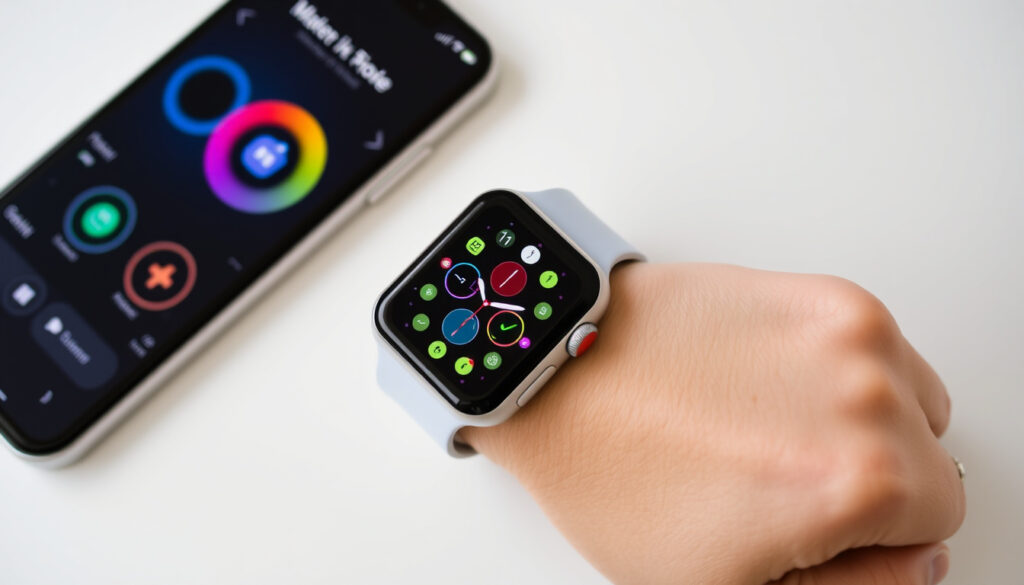
How to Change Apple Watch Face – On Watch & iPhone Guide
Few things give your Apple Watch a fresh feel quite like swapping its face. Whether you’re after a cleaner look or want your activity data front and center, changing the face is a quick tweak once you know the steps.
Apple Watch faces available: 30+ (as of watchOS 10) ·
Primary change methods: 2 (on-device and via iPhone) ·
Minimum watchOS for face management: watchOS 2
Quick snapshot
- Touch and hold the current face to enter selection mode (Apple Support (official watchOS guide))
- Swipe left or right to browse through your faces (Back Market (device guide))
- Tap the face you want to apply as your active display (Buckle & Band (customization guide))
- Open the Watch app on your paired iPhone (Back Market (device guide))
- Browse the Face Gallery tab to choose a new face (Buckle & Band (customization guide))
- Tap Add to sync the new face to your watch (Apple Support (official watchOS guide))
- Select a Photos, Portrait, or Kaleidoscope face from the gallery (Buckle & Band (customization guide))
- Pick your image from the iPhone Photos app or directly on the watch (Apple Support (official watchOS guide))
- Adjust the photo position and add up to four complications (Buckle & Band (customization guide))
- Missing faces: re-add from Face Gallery or restart both devices (Apple Discussions (user reports))
- Syncing issues: ensure Bluetooth is on and software is updated (Apple Support (official watchOS guide))
- Face count varies by region and watch model (likely a sync bug) (Apple Support (official watchOS guide))
| Fact | Detail |
|---|---|
| First watchOS to support custom faces | watchOS 2 (2015) |
| Number of built-in faces in watchOS 10 | 30+ |
| Ways to change face | 2 (directly on watch, via iPhone) |
| Can you use a photo as a face? | Yes, via Photos or Portrait face |
The table above shows the core facts you need before you begin.
How do I change my watch face on an Apple Watch?
Touch and hold the current face
Raise your wrist or tap the screen to wake the display, then press and hold the center of the screen until you feel a haptic tap and the face shrinks slightly. This enters the face selection mode, confirmed by Apple Support (official watchOS guide).
The touch-and-hold gesture is the single fastest route to any face on your watch. No menus, no digging — just one press.
Swipe to the desired face
Once in selection mode, swipe left or right to browse through your available faces. In watchOS 10.2 and later, you can enable a swipe-to-switch option in Settings > Clock for even quicker browsing, according to Apple Support (official watchOS guide).
Tap to confirm
When you land on the face you want, tap it once. The watch exits selection mode and sets that face as your active one. Complications and layout remain as previously configured for that face, per Buckle & Band (customization guide).
- Wake the display.
- Press and hold the screen.
- Swipe to browse faces.
- Tap to select.
The implication: once you learn the press-hold-swipe-tap sequence, switching faces takes about three seconds flat. No digging into menus required.
How do I change my Apple Watch face from my iPhone?
Open the Watch app on iPhone
On your paired iPhone, launch the Watch app — the same one you used during initial setup. The app is organized into three bottom tabs: My Watch, Face Gallery, and Discover. The Face Gallery tab is where new faces live, as outlined by Back Market (device guide).
Browse the Face Gallery
Tap Face Gallery to see every available face organized by category — from Activity Analog to Typograph and Infograph. Each face card shows a live preview with editable fields for color, style, and complications. Tap any face to expand its customization panel, per Buckle & Band (customization guide).
Select and add a face
Customize the face to your liking — adjust accent color, choose a style variant, add complications like weather or activity rings — then tap Add. The face syncs to your watch automatically. To make it active immediately, go to My Watch > My Faces, tap the face, and select Set as current Watch Face. Newest additions appear at the end of your My Faces list, according to Back Market (device guide).
What this means: the iPhone method gives you a far larger preview and easier customization than the watch’s small screen. It’s the better choice when you’re building a face from scratch.
How do I change the home screen picture on my Apple Watch?
Choose a photo watch face
Apple offers three photo-facing options: Photos, Portrait, and Kaleidoscope. The Photos face cycles through a selected album; Portrait uses depth-effect portraits taken on an iPhone; Kaleidoscope creates a symmetrical pattern from your image. These are all available in the Face Gallery, per Buckle & Band (customization guide).
Select a photo from your iPhone or watch
To set a photo from your iPhone: open the Photos app, select an image, tap the Share button, scroll to Create Watch Face, then customize and tap Add. This syncs directly to your watch, confirmed by Buckle & Band (customization guide). On the watch itself, you can also add a photo by selecting the Photos face during face creation and choosing from your synced albums.
Adjust position and complications
After selecting your image, you can crop and reposition it by pinching and dragging. You can also add up to four complications — date, battery, activity rings, or third-party data — laid over the photo. Apple’s Apple Support (official watchOS guide) notes that complication placement depends on the face style, with some layouts reserving space at the top or bottom.
Photo faces don’t support as many complications as Infograph or Modular faces. You get two to four slots, not eight. Choose wisely if data density matters more than aesthetics.
The trade-off: a photo face is personal and visually distinctive, but you sacrifice complication real estate. For most users, the Photos face with three complications and a favorite image hits the sweet spot.
How do I access different Apple Watch faces?
Get to the face selection screen
Press and hold the current face to enter the face gallery. From here, swipe to the very left edge to access the New Face button, or to the right edge to see your last used face. This is the fastest way to browse everything you’ve added, per Back Market (device guide).
Browse built-in and custom faces
Your My Faces list in the Watch app (My Watch tab) shows every face currently installed on your watch. Each entry shows a miniature preview and can be tapped for editing or deletion. Faces you add from the Face Gallery automatically appear here. Buckle & Band (customization guide) notes that organizing your list — removing unused faces — makes on-watch browsing faster.
Reinstall missing faces
If a face goes missing after an update, open the Watch app on iPhone > My Watch > scroll to the face list. If the face appears but isn’t active, tap it and select Add. If it’s not listed at all, visit the Face Gallery, find the face, and re-add it. Restarting both devices resolves most sync glitches, according to Apple Discussions (user reports).
The pattern: managing faces from the Watch app gives you a library view that the watch’s small screen can’t match. Keep your list trimmed to 8–10 active faces for smooth on-watch browsing.
Why can’t I change my Apple Watch face from my phone?
Check watch and iPhone connection
If the Face Gallery on your iPhone shows no faces or changes won’t sync, start with the connection. Make sure Bluetooth is on and the watch appears as Connected in the Watch app. Open Control Center on the watch to confirm it shows the green iPhone icon, per Apple Support (official watchOS guide). If you’re looking for more information on how to manage your Apple Watch faces, you can find details in Project Hail Mary Buch und Film.
Update watchOS and iOS
An outdated software version on either device can break face syncing. On iPhone: Settings > General > Software Update. On watch: Watch app > General > Software Update. Both must be on a compatible version — watchOS 9 pairs with iOS 16 and later, for example, as Apple Support (official watchOS guide) confirms.
Ensure face is not deleted
It’s possible the face was accidentally removed. Open the Watch app > Face Gallery > find the face and tap Add. If the face is a third-party one, make sure the companion app is installed on both devices. Apple Discussions (user reports) notes that third-party complications sometimes require reinstalling the app after a watchOS update.
If all else fails, unpair and re-pair your watch — but this wipes the device. Use this only as a last resort after trying restarts and updates.
Why this matters: most “can’t change face” issues boil down to one of three things — a stale software version, a Bluetooth dropout, or a face that was silently removed during an update. All three are fixable in under five minutes.
Confirmed facts vs. what’s unclear
Confirmed facts
- Changing face on watch requires touch and hold — Apple Support (official watchOS guide)
- iPhone method uses the Watch app — Back Market (device guide)
- Photo faces available since watchOS 2 — Buckle & Band (customization guide)
- Complications display app data like steps and weather — Stridekick (complications guide)
- Swipe-to-switch toggle available in watchOS 10.2+ — Apple Support (official watchOS guide)
What’s unclear
- Why specific faces disappear after an update — likely a sync bug, per Apple Discussions (user reports)
- Exact face count varies by region and watch model — Apple Support (official watchOS guide)
- How third-party faces (if any) will work in future watchOS versions — no official roadmap published
“To change your watch face, simply touch and hold the display, then swipe to browse available faces and tap to select.”
— Apple Support, official watchOS user guide
“The Face Gallery on iPhone shows every face with live previews — you can customize colors, complications, and style before you add it to your watch.”
— Apple Support, how-to video
“If you’re missing a face after an update, check the Face Gallery first. Most faces can be re-added in under a minute without losing your customizations.”
— Apple Discussions, user guide thread
For the typical Apple Watch owner, the choice between on-watch and iPhone methods comes down to context. On-watch swapping is faster for quick changes during the day. The iPhone method is better for building and customizing a face with full previews. Both get the job done, and knowing both means you’re never stuck with a face you don’t want.
Frequently asked questions
How many watch faces are available on Apple Watch?
watchOS 10 includes over 30 built-in faces, from simple analog styles to data-rich modular options. The exact number varies by region and watch model, according to Apple Support (official watchOS guide).
Can I download additional watch faces?
Apple does not offer a third-party face store. All faces are built into watchOS. However, third-party apps like StepsApp and Pedometer++ can add complications that appear on existing faces, per YouTube (Steps on Apple Watch SE guide).
Will changing the watch face affect my complications?
Each face saves its own complication layout independently. Switching away and back restores the exact arrangement you configured for that face, as Buckle & Band (customization guide) confirms.
Do I lose my custom faces when I unpair the watch?
Yes — unpairing removes all faces from the watch. If you have an iCloud backup of your paired iPhone, faces may restore when you re-pair. Apple recommends backing up before unpairing, per Apple Support (official watchOS guide).
Can I set a different face for my Apple Watch family member?
Yes. In the Watch app on your iPhone, tap All Watches at the top left, select the family member’s watch, then manage faces normally. Each paired watch maintains its own face list, according to Apple Support (official watchOS guide).
How do I remove a watch face I no longer want?
On the watch: press and hold the face, swipe up, tap the trash icon. On iPhone: Watch app > My Watch > tap the face > scroll to bottom > Delete. Removing a face does not delete its apps or data, per Back Market (device guide).
Does the method differ between watchOS 9 and 10?
The core press-hold-swipe-tap sequence works the same on both versions. watchOS 10.2 added a Settings toggle for swipe-to-switch. Face Gallery on iPhone is identical across both versions, as Apple Support (official watchOS guide) details.
More related posts