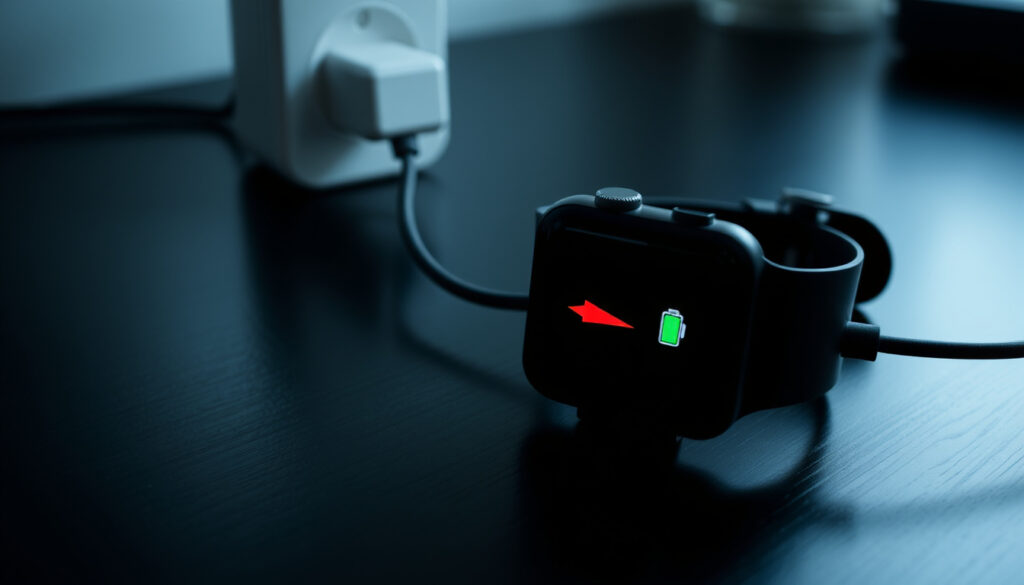
How to Turn On Apple Watch: Dead, Unresponsive, or After It Dies
There’s a particular sinking feeling when your Apple Watch screen goes black and won’t respond. Whether it’s a dead battery, a frozen interface, or a deeper glitch, the fix is usually simpler than you think. This guide walks through the exact revival sequence approved by Apple — from the first charge to the final force restart — so you can get back to your day without the panic.
Apple Watch models supported: Series 1 to Ultra 2 · Standard charge time (dead to on): 10–15 minutes for boot · Side button press duration: 10–15 seconds · Force restart button combo: Digital Crown + Side button · Apple official support pages: 3 top SERP results
Quick snapshot
- Press and hold the side button (Apple’s restart guide)
- Wait for the Apple logo to appear (Apple’s restart guide)
- Watch face loads after 30–60 seconds (Apple’s restart guide)
- Connect the Apple Magnetic Charging Cable (Apple’s charging support page)
- Wait at least 10 minutes for enough charge to boot (Apple’s charging support page)
- Then press the side button (Apple’s charging support page)
- Hold the Digital Crown and side button together for 10–15 seconds (Apple’s restart guide)
- Release when the Apple logo appears (Apple’s restart guide)
- Does not erase data (Apple’s restart guide)
- Inspect charger and cable for damage (Apple’s charging support page)
- Look for physical damage on the watch (Apple’s charging support page)
- Contact Apple if no response after force restart (Apple’s charging support page)
Five key specs, one pattern: the entire recovery process hinges on charging time and button placement. Here’s a quick reference table.
| Label | Value |
|---|---|
| Minimum charge before boot | 10 minutes (Apple’s charging support page) |
| Force restart duration | 10–15 seconds (Apple’s restart guide) |
| Side button location | Right side below Digital Crown |
| Digital Crown location | Top‑right of watch face |
| Apple Watch models covered | Series 1, 3, 5, 7, 8, 9, Ultra, Ultra 2, SE |
How do I turn my Apple Watch back on after it dies?
Charge for at least 10 minutes
- A completely drained Apple Watch requires a minimum 10‑minute charge before it can power on (Apple’s charging support page).
- The correct charger is the Apple Magnetic Charging Cable or USB‑C Magnetic Fast Charging Cable that came with the watch (Apple’s charging support page).
- If the watch shows a low‑battery icon, it’s charging but not ready to boot.
Press and hold the side button until the Apple logo appears
- The side button (not the Digital Crown) is the correct button for a normal power‑on (Apple’s restart guide).
- Hold for about 2–3 seconds until the Apple logo flashes.
- The watch face appears only after the Apple logo finishes loading, typically 30–60 seconds.
Why is my dead Apple Watch not turning on?
Check charger and cable connection
- A faulty charger or cable can prevent charging (Apple’s charging support page).
- Test the wall outlet with another device before assuming the watch is dead (Apple Support Community discussion).
- Ensure the charger is aligned magnetically to the back of the watch.
Inspect for physical damage
- Physical damage (cracked screen, bent pins) may block power (Apple’s charging support page).
- Check the charging contacts on the back of the watch for debris.
Perform a force restart
- A force restart (Digital Crown + Side button for 10–15 seconds) can revive an unresponsive watch without erasing data (Apple’s restart guide).
- Use force restart only if a normal restart fails (Apple Support Canada advice).
Force restart is the most reliable fix for a frozen watch, but it masks underlying issues. If it works, you still need to check battery health and software updates.
The implication: a dead Apple Watch that won’t turn on is usually a charging or software problem, not a hardware failure. But if the charger and cable are good and force restart fails, the issue may be deeper.
How long does a dead Apple Watch take to turn on?
Charge time before boot
- After starting to charge, the watch may take 10–15 minutes to accumulate enough power to boot (Apple’s charging support page).
- Some third‑party guides advise charging for at least 30 minutes before concluding the battery is unrecoverable (AppleWatchLab guide).
Boot sequence duration
- The boot process (Apple logo to watch face) typically takes 30–60 seconds (Apple’s restart guide).
- If the Apple logo stays on screen longer than 2 minutes, the watch may be stuck — force restart again.
The pattern: Apple’s own guidance is conservative; the 10‑minute figure is a minimum, not a guarantee. Actual time depends on battery health and charger wattage.
How to fix an unresponsive Apple Watch?
Force restart steps
- Hold the Digital Crown and side button together for at least 10 seconds (Apple’s restart guide).
- Release when the Apple logo appears — the watch will restart normally.
- Force restart clears temporary software glitches without erasing data (Apple’s stuck logo support page).
Reset pairing and settings
- If force restart fails, unpair and re‑pair via the iPhone Watch app (Apple’s stuck logo support page).
- This resets the watchOS configuration without a full factory reset in most cases.
- Keep the watch and iPhone close together during the process (Apple’s connectivity support page).
Contact Apple Support
- Hardware failures (battery, logic board) require Apple Service (Apple’s charging support page).
- Check coverage status at Apple Watch Support page.
An unresponsive Apple Watch that doesn’t respond to force restart is almost certainly a hardware issue. Delaying service can lead to a completely dead battery that can’t be revived.
How to turn on Apple Watch while charging?
Place on charger correctly
- The charger must be aligned magnetically to the back of the watch (Apple’s charging support page).
- A green lightning bolt icon indicates it is charging.
Wait for the green lightning bolt
- If the watch is too dead to show the icon, wait at least 10 minutes.
Press side button after adequate charge
- After 10–15 minutes, press the side button — the watch should boot normally.
The trade-off: charging while the watch is on the charger is fine, but prolonged charging on a dead battery won’t speed up the boot process.
How to turn on Apple Watch without phone?
Use the side button directly
- The side button power‑on method works independently of the iPhone (Apple’s restart guide).
- If the watch is dead, charge first, then press the side button.
If dead, charge first
- Same process as above: charge for 10+ minutes, then press side button.
Force restart if unresponsive
- Force restart works without the phone nearby.
What this means: after initial setup, the watch can be turned on and used independently. The phone is only needed for pairing and significant software updates.
Six Apple Watch models, one key difference: the side button location varies slightly. Here’s a model‑by‑model breakdown.
| Model | Side button position | Digital Crown | Charger type | Force restart combo | Expected charge time (dead) |
|---|---|---|---|---|---|
| Series 1 | Right side, below crown | Top‑right | Magnetic Charging Cable | Crown + Side button, 10s | 10–15 min |
| Series 3 | Right side, below crown | Top‑right | Magnetic Charging Cable | Crown + Side button, 10s | 10–15 min |
| Series 5 | Right side, below crown | Top‑right | Magnetic Charging Cable | Crown + Side button, 10s | 10–15 min |
| Series 7 | Right side, below crown | Top‑right | USB‑C Magnetic Fast Charging | Crown + Side button, 10s | 10–15 min |
| Series 8 | Right side, below crown | Top‑right | USB‑C Magnetic Fast Charging | Crown + Side button, 10s | 10–15 min |
| Series 9 | Right side, below crown | Top‑right | USB‑C Magnetic Fast Charging | Crown + Side button, 10s | 10–15 min |
| Ultra / Ultra 2 | Right side, below crown | Top‑right | USB‑C Magnetic Fast Charging | Action button not used; Crown + Side button | 10–15 min |
| SE (all generations) | Right side, below crown | Top‑right | Magnetic Charging Cable | Crown + Side button, 10s | 10–15 min |
Step‑by‑step revival guide
- Connect your Apple Watch to its charger using the original cable and power adapter.
- Wait at least 10 minutes (15 if the battery is completely drained).
- Press and hold the side button until the Apple logo appears.
- If nothing happens, perform a force restart: hold the Digital Crown and side button together for 10–15 seconds.
- If the Apple logo stays on screen for more than 2 minutes, force restart again.
- If the watch still won’t turn on, unpair and re‑pair from the iPhone Watch app.
- If all else fails, contact Apple Support for hardware service.
Confirmed facts
- Dead Apple Watch needs at least 10 minutes of charging before it can power on (Apple’s charging support page).
- Force restart method works on all models and does not erase data (Apple’s restart guide).
- Side button alone turns on an Apple Watch that has minimal charge (Apple’s restart guide).
What’s unclear
- Exact charge time varies by model and charger wattage (AppleWatchLab guide).
- Battery health percentage needed to boot is not published by Apple.
- Force restart effectiveness on older Series 1/2 watches is not documented by Apple.
What the experts say
“If your Apple Watch won’t turn on, make sure you’re using the Apple Magnetic Charging Cable or USB‑C Magnetic Fast Charging Cable that came with the watch.”
— Apple Support (Apple’s charging support page)
“Hold the side button and the Digital Crown together for at least 10 seconds until the Apple logo appears.”
— Apple Support (Apple’s restart guide)
“If the Apple logo persists after force restart, unpair the watch from the iPhone and pair it again.”
— Apple Support (Apple’s stuck logo support page)
“Charging for at least 30 minutes before concluding the battery is unrecoverably dead is a good rule of thumb.”
— AppleWatchLab (AppleWatchLab guide)
For Apple Watch users whose device won’t turn on, the path forward is clear: start with the charger, work through the force restart, and if nothing works, accept that it’s likely a hardware issue and seek service. Delaying only risks a dead battery that can’t be revived.
Related reading: How to Close Apps on Apple Watch: Step-by-Step (watchOS 10) · Apple Watch 10 vs SE: Which One Should You Buy
support.apple.com, support.apple.com, support.apple.com, support.apple.com, youtube.com, support.apple.com, discussions.apple.com, youtube.com, discussions.apple.com
Frequently asked questions
Does force restart erase data on Apple Watch?
No, force restart clears temporary software glitches without erasing any data (Apple’s stuck logo support page).
How do I know if my Apple Watch is charging?
Look for a green lightning bolt icon on the screen. If the watch is completely dead, the icon may appear after a few minutes (Apple’s charging support page).
Can I turn on my Apple Watch without pressing the side button?
No, the side button is the only way to power on a watch that is off but has charge. Force restart uses the side button and Digital Crown together.
What should I do if the Apple logo stays on screen?
Force restart again by holding the Digital Crown and side button for 10–15 seconds. If it persists, unpair and re‑pair (Apple’s stuck logo support page).
How often should I restart my Apple Watch?
Apple doesn’t specify a frequency, but restarting once a week can prevent minor glitches.
Will a factory reset help an Apple Watch that won’t turn on?
Only if the watch actually turns on but is unresponsive. A factory reset requires the watch to be powered on and paired.
Is it safe to use a third‑party charger with Apple Watch?
Apple recommends using only Apple‑certified chargers. Third‑party chargers may not charge reliably or could damage the battery (Apple’s charging support page).
How long does an Apple Watch battery last before needing replacement?
Apple estimates the battery retains up to 80% of its original capacity after 1,000 charge cycles. Replacement is needed when the battery no longer holds enough charge to power the watch.
More related posts
 Cast Of Found Tv Series
 Where to Watch Made in Abyss: Netflix, Crunchyroll, Amazon Prime
 Rings Of Power Cast
 Nolan North: Voice of Nathan Drake, Deadpool & More
 Cast Of Brilliant Minds
 CMF Watch Guide: Models, Features, and Which to Buy
House Of Dragon Cast
CMF Watch Guide: Models, Features, and Which to Buy
House Of Dragon Cast
 Jada Pinkett Smith: Biography, Health, and Family
