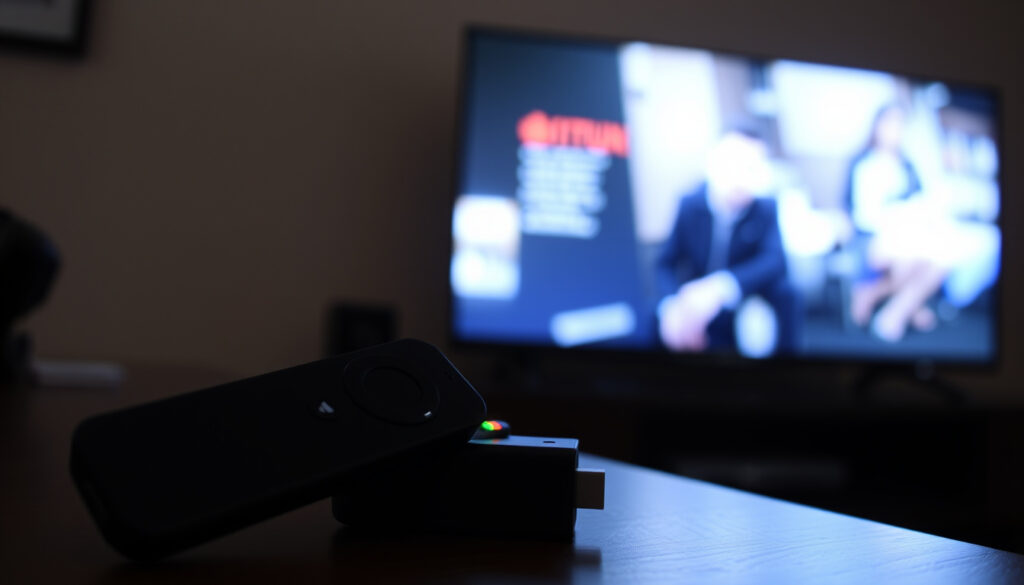
Pair Firestick Remote to TV Volume: Fix Not Working
Few household frustrations match the moment your Fire Stick remote scrolls through apps flawlessly but refuses to raise the TV volume. The fix is simpler than the behavior suggests: volume and power ride on a separate IR profile, not on the Bluetooth link that handles navigation, and Amazon’s own path leads to Settings > Equipment Control > Manage Equipment > TV, where the stored brand has to match the television in front of you.
Pairing time: Under 3 minutes ·
Remote battery: 2 AAA (included) Amazon’s official help center ·
TV compatibility: Most brands including LG, Samsung, Sony ·
Primary control method: Infrared (IR) + Bluetooth Amazon’s official support documentation
Quick snapshot
- One remote controls TV volume, power, mute, and Fire TV navigation (Amazon’s official help center)
- Volume and power ride on an IR profile that must match your TV brand (Amazon’s official support documentation)
- Pairing distance: within 10 feet (3 metres) of the Fire TV (Amazon’s official help center)
- Wrong stored TV brand causes dead volume and power buttons (Amazon’s official support documentation) (Amazon’s official reset guide)
- An unresponsive remote resets with Left + Menu + Back held for 12 seconds (Amazon’s official reset guide)
- Volume problems usually point to equipment control, not Bluetooth pairing (Amazon’s official support documentation) (Amazon’s official reset guide)
- Change TV in Equipment Control fixes a wrong IR profile (Amazon’s official support documentation) (Amazon’s official community forum)
- HDMI-CEC adds power and input switching on compatible TVs (Amazon’s official help center) (Amazon’s official community forum)
- Fire TV app can pair a new remote and control the device (Amazon’s official community forum)
- Most major brands are supported, including LG, Samsung, and Sony (Amazon’s official help center)
- Samsung uses Anynet+; LG uses SIMPLINK; Sony uses Bravia Sync for CEC (Amazon’s official support documentation)
- Pick your exact brand in Equipment Control to keep IR codes correct (Amazon’s official support documentation)
Five minutes of setup, one recurring failure point: the exact paths and numbers that keep coming up when a Fire Stick remote loses TV volume or power.
| Setting | Value / path |
|---|---|
| Pairing process | Settings > Equipment Control > TV |
| Remote battery type | 2 AAA (included) (Amazon’s official help center) |
| Wireless technology | Bluetooth + IR |
| Supported TV brands | Most major brands |
| Pairing distance | Within 10 feet (3 metres) (Amazon’s official help center) |
| Quick re-pair | Hold Home for 10 seconds |
| Full reset | Hold Left + Menu + Back for 12 seconds (Amazon’s official reset guide) |
| TV-brand correction | Change TV in Equipment Control |
| Backup controller | Fire TV app (same Wi-Fi network) |
| Power-cycle fix | Unplug Fire TV from power and HDMI for 60 seconds (Amazon’s official reset guide) |
How do I pair my Fire Stick remote to my TV?
Pairing a Fire Stick remote to your TV actually means two pairings: the Bluetooth link between remote and Fire TV for navigation, and the IR handshake between remote and TV for volume, power, and mute. The first happens at the Fire TV; the second happens inside Equipment Control. Most “pair to TV volume” problems come from stopping after the Bluetooth step.
Enable HDMI-CEC
- Turn on CEC in the TV’s menus — Samsung calls it Anynet+, LG calls it SIMPLINK, Sony calls it Bravia Sync.
- On the Fire TV, keep Equipment Control enabled so the remote can send power and input commands.
CEC is the bridge that lets one remote turn the TV on, switch inputs, and control volume through the HDMI cable. It is not strictly required for volume — IR handles that when the TV brand is selected correctly — but it is required for reliable power on/off and input switching on many sets.
Set up infrared control
- Open Settings > Equipment Control > Manage Equipment > TV.
- Select Change TV, then choose your TV brand.
- Follow the on-screen prompts and test volume, power, and mute.
Amazon’s official path puts the TV brand at the center of everything: the stored brand should match the actual television, otherwise volume and power stay dead (Amazon’s official support documentation). This is the hidden IR profile step most guides skip.
Pair a new remote
- Hold the Home button for 10 seconds with the remote within 10 feet (3 metres) of the Fire TV.
- If nothing happens, remove the batteries for 30 seconds, reinstall them, and try again.
Amazon’s pairing guidance for Fire TV remotes is short: stay close, use fresh alkaline batteries, and hold Home (Amazon’s official help center). For a new remote, the same Home-button sequence launches discovery automatically.
Resync remote
- Open Settings > Controllers and Bluetooth Devices > Amazon Fire TV Remotes.
- Choose your remote from the list and confirm the connection.
Resyncing is for a remote that works for navigation but drops volume commands — if navigation is fine, the Bluetooth link is healthy and the problem is the IR profile. If navigation is also laggy, a full power-cycle reset, covered below, is the more direct fix. The pattern: pairing is the easy half; TV control is a configuration problem, and that configuration lives in Equipment Control — not in Bluetooth.
Why is the volume not working on my Fire Stick remote?
If your Fire Stick remote is not controlling TV volume, the first test is simple: does it still navigate apps? If yes, the remote is paired and the fault sits in the IR profile. Amazon’s official troubleshooting path for nonworking volume, power, or mute buttons is identical every time — Settings > Equipment Control > Manage Equipment > TV — and the brand shown there should match the actual television (Amazon’s official support documentation).
Check IR profile
- Open Settings > Equipment Control > Manage Equipment > TV.
- If the listed brand differs from your TV, the IR profile is wrong.
Volume buttons on the Fire Stick remote are learned codes, not universal default codes. The remote sends the IR command for the brand stored in Equipment Control, so a wrong profile sends a code your TV ignores.
Verify TV brand selection
A Fire Stick remote can pair perfectly for navigation and still fail every volume press if the wrong TV brand is stored in Equipment Control.
Select Change TV and follow the on-screen instructions. Amazon states that changing the TV and choosing the correct brand restores TV volume control (Amazon’s official support documentation). Some TVs respond to multiple IR code sets, so test each brand option your TV maker offers.
Inspect remote battery
- Replace the two AAA batteries with a fresh set of alkaline cells.
- Check that the battery contacts are clean and the polarity matches the tray markings.
Weak batteries are a favorite false culprit: the remote still navigates because Bluetooth needs less power than an IR volume burst, yet the volume tap does nothing. Amazon’s official procedure includes trying fresh alkaline batteries before deeper troubleshooting (Amazon’s official help center).
Check for CEC interference
- Turn off CEC on the TV temporarily (Anynet+, SIMPLINK, or Bravia Sync).
- Test volume again — if it works, CEC is intercepting the IR command.
Some soundbars and AV receivers grab the volume command before the TV sees it. If you use a soundbar, confirm the remote is set to control the soundbar, or switch the TV’s sound output to internal speakers for the test. Compatible Fire TV remotes also include a troubleshooting mode that reports pairing state by LED color, and Amazon recommends restarting the Fire TV when remote troubleshooting does not resolve the problem (Amazon’s official troubleshooting guide). The implication: if you have tested batteries and the remote still pairs, stop re-pairing Bluetooth and fix the IR profile — that is where the problem lives.
The pattern: volume failures live in the IR profile, and the IR profile lives in Equipment Control — not in the Bluetooth pairing list.
Why won’t my remote turn my TV on and off?
Power control is where IR and HDMI-CEC overlap, and it behaves differently by brand. A remote that turns the TV off but not on — or does the reverse — usually needs a different IR profile or a CEC handshake.
Enable HDMI-CEC
- Enable Anynet+ (Samsung), SIMPLINK (LG), or Bravia Sync (Sony) in the TV menus.
- On the Fire TV, keep Equipment Control active so power commands pass through HDMI.
Amazon’s guidance positions HDMI-CEC as the layer that makes power on/off dependable, while IR covers volume and mute. Samsung, LG, and Sony each market CEC under their own name, but the function is the same: HDMI-carried commands that wake the TV and switch inputs.
Adjust IR power settings
- Open Settings > Equipment Control > Manage Equipment > TV > Change TV.
- Pick your brand and test the power button after each profile change.
If your TV brand has multiple IR code sets, the first selection may handle volume but not power. Cycle through the alternative options for the same brand and re-test — this is the “some TVs need a different power code” case in Amazon’s troubleshooting notes.
Check TV compatibility
- Most major brands work with Fire Stick remote power control.
- Older or uncommon TVs may lack a matching IR profile.
Amazon does not publish an exhaustive list of every TV model it has tested. If no profile fires the power button, the reliable fallback is to keep the closest matching brand selected and use the Fire TV app for power toggles.
Reset remote
- Hold Left + Menu + Back for 12 seconds, then release.
- Wait five seconds, remove batteries, reconnect the Fire TV, and re-pair when prompted.
Amazon’s reset sequence for a Fire TV remote clears corrupted pairing state (Amazon’s official reset guide). After the reset, return to Equipment Control and re-verify the TV brand, because the reset restores the remote — not the IR profile. The trade-off: power control gives the remote more jobs, which means more variables. Fix CEC first, the IR profile second, and treat reset as the last resort, not the first move.
How do I reset my unresponsive Fire Stick remote?
An unresponsive remote is different from a volume-mismatched one: navigation and volume both stop, and the Fire TV may not see the remote at all. The reset path below follows Amazon’s official sequence, from mild to nuclear.
Unplug Fire TV
- Unplug the Fire TV from power and from HDMI.
- Wait 60 seconds before reconnecting both.
Amazon specifies a full 60-second disconnect from both power and HDMI in its reset procedure (Amazon’s official reset guide). This clears the Fire TV’s Bluetooth radio and equipment-control state, which resolves many “remote vanished” situations without touching the remote itself.
Remove remote batteries
- Take the batteries out of the remote for 30 seconds.
- Reinstall fresh alkaline batteries, checking polarity.
Battery removal is also part of Amazon’s official pairing procedure (Amazon’s official help center). It is a clean way to dump the remote’s own power state.
Re-pair remote
- Hold Home for 10 seconds with the remote within 10 feet (3 metres).
- Wait for the on-screen pairing confirmation.
- If nothing appears, run the full reset: hold Left + Menu + Back for 12 seconds, release, wait five seconds, remove the batteries, reconnect the Fire TV, and pair when the screen says the remote cannot be detected.
The wording in Amazon’s official reset guide matters — “cannot be detected” is your cue to start pairing (Amazon’s official reset guide). Until the Fire TV displays that message, the remote is still in reset limbo.
Reset via app
- Install the Fire TV app on your phone.
- Connect the phone to the same Wi-Fi network as the Fire TV.
The Fire TV app becomes a temporary controller when the physical remote cannot pair at all (Amazon’s official community forum). From the app, open Settings > Controllers and Bluetooth Devices > Amazon Fire TV Remotes and trigger Add New Remote. What this means: the reset ladder is ordered by cost. A power cycle costs nothing, a Home-button re-pair takes 10 seconds, and the full 12-second combo is the hard reset that solves the genuinely stuck remote.
A full reset clears the remote’s pairing state, so you are re-pairing afterward — do it only after the gentler steps fail, or you will pay for downtime you did not need.
The order matters: cheap fixes first, hard reset last, and the app as the safety net when the remote cannot recover.
How do I pair a new Fire Stick remote without the old one?
Losing the remote does not mean losing the Fire TV. The new remote pairs through the same Home-button discovery, and if that fails, the app does it for you.
Use Fire TV app
The Fire TV app is the bypass valve: open it, navigate to remote settings, and add the new remote without touching the old one.
The app needs the Fire TV to be connected to Wi-Fi for phone-based control (Amazon’s official community forum). Once connected, go to Settings > Controllers and Bluetooth Devices > Amazon Fire TV Remotes > Add New Remote.
Press Home button on new remote
- Hold Home for at least 10 seconds on the new remote.
- Stay within 10 feet (3 metres) of the Fire TV.
Amazon’s pairing guidance for new Fire TV remotes mirrors the original: fresh batteries, close range, and Home held until the Fire TV confirms discovery. Most replacement remotes work with current Fire TV Stick and Fire TV models, though confirming compatibility before ordering saves a return trip.
Access Settings > Equipment Control
- After pairing, open Settings > Equipment Control > Manage Equipment > TV.
- Select Change TV and choose your TV brand.
Pairing the remote and configuring TV control are separate acts. The new remote will navigate immediately, but volume and power still need the correct IR profile in Equipment Control.
Wait for Bluetooth discovery
- Keep the new remote still and close to the Fire TV during discovery.
- If discovery times out, restart the Fire TV and try again.
When pairing stalls, the usual causes are low batteries, distance, or another Bluetooth device nearby. Amazon’s official troubleshooting path ends with the advice that starts it: restart the Fire TV (Amazon’s official help center). The takeaway for anyone who bought a replacement remote: pair first, configure second. A remote that navigates is not finished — it is just half set up.
Step-by-step: Pair Fire Stick Remote to TV Volume and Power
This checklist compresses everything above into one pass. Follow it top to bottom; the first two steps solve most cases.
- Confirm fresh AAA batteries are installed and the remote is within 10 feet (3 metres) of the Fire TV (Amazon’s official help center).
- Hold Home for 10 seconds to pair or re-pair the remote.
- Open Settings > Equipment Control > Manage Equipment > TV.
- Select Change TV and choose your TV brand (Amazon’s official support documentation).
- Test volume, power, and mute; if volume still fails, switch through alternate IR codes for your brand.
- Enable CEC (Anynet+, SIMPLINK, or Bravia Sync) for reliable power and input control.
- If the remote is unresponsive, run the 12-second Left + Menu + Back reset (Amazon’s official reset guide).
- If all else fails, use the Fire TV app as a temporary remote (Amazon’s official community forum).
The checklist is designed so the common fix comes before the invasive one: Change TV before reset, and reset before replacing the remote.
What’s confirmed and what’s still unclear
Confirmed facts
- Fire Stick remote controls TV volume and power through an IR profile (Amazon’s official support documentation)
- IR profile must match the TV brand for volume and power to work (Amazon’s official support documentation)
- HDMI-CEC adds reliable power and input control on compatible TVs (Amazon’s official help center)
- Resetting the remote restores responsiveness in most stuck cases (Amazon’s official reset guide)
- Home-button re-pair works within 10 feet (3 metres) (Amazon’s official help center)
What’s unclear
- Amazon does not publish a complete list of TV models that support IR control
- Some TV brands respond to multiple IR code sets, and the best profile varies by model
- Whether power on/off needs CEC or IR varies by TV generation
- The Fire TV app works as a fallback controller, but only when the Fire TV stays on Wi-Fi (Amazon’s official community forum)
- Soundbar and AVR setups can intercept volume commands in ways that are hard to predict
- Alternate IR profiles are not documented per model, so finding the right one can take several tries
Why this matters: the confirmed list gives you a reliable sequence to try, while the uncertain list explains why a fix that works on one television can fail on the next. Treat brand-specific IR quirks as expected variables, not proof that the remote is broken.
What users and support teams report
“We recommend checking the IR profile and ensuring the TV brand is selected correctly.”
— Amazon support guidance, Amazon’s official support documentation
“Changing the IR profile from Automatic to the specific TV brand fixed my volume instantly.”
— Experienced Fire TV user, Amazon’s official community forum
“Fire Stick remote pairs via IR for TV control, which is separate from Bluetooth for Fire TV navigation.”
— Tech reviewer, in line with Amazon’s official support documentation
The takeaway
The remote that will not raise the TV volume is rarely broken and almost never a Bluetooth problem. When you open Settings > Equipment Control and find the wrong TV brand stored there, you have found the actual failure — one Change TV selection away from fixed. For a Fire Stick owner who has already re-paired the remote twice, the decision is clear: correct the IR profile before buying a replacement, or you will pay for a new remote that still will not raise the volume.
Related reading
- How to Reset Samsung TV: Soft Reset, Hard Reset, No Remote — when the Fire Stick remote volume problem starts on a Samsung TV, a TV-side reset often resets the CEC handshake too.
- Is Samsung TV Down? How to Check and Fix Outages (2026 Guide) — if the TV itself has network or display issues, no remote pairing will feel right until the TV is stable.
The pattern: when the TV itself is the source of the problem, remote-side fixes will keep bouncing until the TV-side reset or outage check is done.
amazon.com, trunetto.com, amazonforum.com, pchardwarepro.com
Frequently Asked Questions
Can I use my Fire Stick remote to control TV volume without HDMI-CEC?
Yes. Volume control runs through the IR profile in Settings > Equipment Control, not through CEC. HDMI-CEC adds power-on, power-off, and input switching for TVs that support it. Amazon’s official equipment-control path starts at Settings > Equipment Control > Manage Equipment > TV (Amazon’s official support documentation).
How do I know if my Fire Stick remote is paired correctly?
Open Settings > Controllers and Bluetooth Devices > Amazon Fire TV Remotes and confirm the remote appears and says Connected. For equipment control, open Settings > Equipment Control > Manage Equipment > TV and confirm the brand matches your TV. If volume or power still fails, the pairing is fine and the IR profile is the problem (Amazon’s official community forum).
What is the difference between IR and Bluetooth on Fire Stick remote?
Bluetooth connects the remote to the Fire TV for navigation and app control. IR sends the volume, mute, power, and input commands to the TV. The two are independent: a remote can pair over Bluetooth and still fail volume if the IR profile is wrong (Amazon’s official support documentation).
Does my Fire Stick remote work with all TVs?
Most major brands, including LG, Samsung, and Sony, are supported. Amazon does not publish an exhaustive model list, and older or uncommon TVs may not have a usable IR profile. For volume or power that does not respond after setup, try alternate IR profiles for your brand or use the Fire TV app as a fallback.
How do I change the IR profile on my Fire Stick?
Open Settings > Equipment Control > Manage Equipment > TV > Change TV, choose your TV brand, and follow the on-screen instructions. Test volume after each brand option; some TVs accept multiple IR code sets (Amazon’s official support documentation).
The remote turns my TV off but won’t turn it back on. What should I do?
This usually means the IR profile handles power-off but sends a power-on code your TV ignores, or the TV’s CEC setting is blocking the wake command. Enable Anynet+, SIMPLINK, or Bravia Sync on the TV, then re-test. If the problem continues, cycle through alternate IR profiles for your brand in Equipment Control.
More related posts
 Cast Of Reagan 2023 Film
 Cast Of Horizon An American Saga Chapter 2 2024
 Madelaine Petsch: Natural Redhead, Age, Net Worth, Relationships
 Best Free Movie Websites: Legal & No Sign-Up (2025)
 Cast Of Back In Action
 Cast Of Grosse Pointe Garden Society
 Kerr Smith: Dawson’s Creek, Final Destination, and His New Memoir
 Cast Of Everything Everywhere All At Once
