How to Reset Samsung TV: Soft, Hard & Factory Reset (2024 Guide)
There’s a moment every Samsung TV owner knows — the screen freezes, the remote stops responding, and suddenly you’re staring at a black rectangle with no idea what to do next. Whether it’s a stubborn app crash or a full system lockup, knowing how to reset your Samsung TV can save your viewing session in minutes. This guide walks through every reset method — soft, hard, and factory — with verified steps for all model years, even when your remote isn’t working.
Samsung TV Models Supported: 2016–2024, including Smart TV and older ·
Reset Methods Covered: 3 (soft reset, hard reset, factory reset) ·
Average Time to Complete: 2–5 minutes per method ·
Remote Required: No for some methods ·
Data Loss Risk: Factory reset erases all settings and apps
Quick snapshot
- Quick restart, no data loss (Samsung US Support)
- Best for freezing or minor glitches (Samsung US Support)
- Takes 1–2 minutes (Samsung US Support)
- Force restart via hardware button (YouTube guide)
- Use when TV is unresponsive (YouTube guide)
- May require holding button up to 15 seconds (YouTube guide)
- Restores original settings (Samsung US Support)
- Erases all accounts, apps, and data (Samsung US Support)
- Requires PIN (default 0000) (Samsung US Support)
- Try soft reset first for minor issues (Samsung US Support)
- Use hard reset when system is completely frozen (YouTube guide)
- Only use factory reset as last resort (Samsung US Support)
These key facts provide context for the reset methods covered below.
| Samsung TV market share (2024) | Approximately 20% of global TV sales |
| Most common reset issue | TV not responding to remote |
| Default reset PIN | 0000 |
| Number of reset methods | 3 primary methods |
| Average resolution time | Under 5 minutes |
How to Factory Reset Your Samsung TV
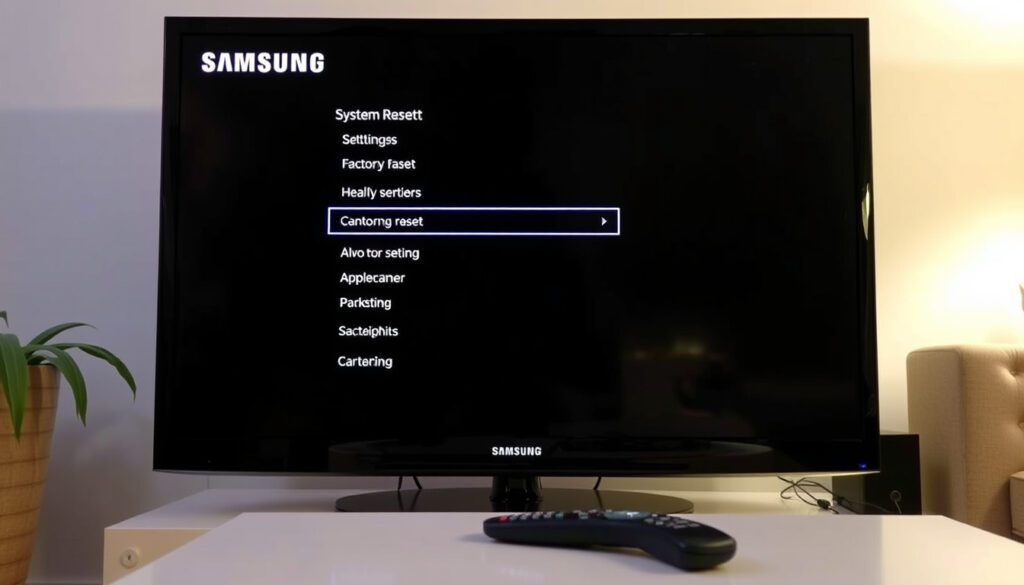
- Press the Home button on your remote, then navigate to Settings > General > Reset.
- Enter your PIN (default 0000) and select OK.
- Wait for the TV to restart and return to factory state.
Factory Reset Using the Settings Menu
- Press the Home button on your remote, then navigate to Settings > General > Reset (Samsung US Support).
- Enter your PIN — the default is 0000 (Samsung Australia Support).
- Select OK to confirm the reset. The TV will restart and return to its original factory state.
- If the menu path doesn’t match, try Settings > Support > Self Diagnosis > Reset (Samsung US Support).
- Factory reset erases all user data — accounts, apps, and personalized settings will be removed (Samsung Australia Support).
Factory Reset Without a Remote (Hardware Button Method)
- Locate the physical power button on your TV — it’s usually on the back, side, or bottom edge (YouTube guide).
- Press and hold the power button for about 10–15 seconds until the TV turns off and back on (YouTube guide).
- On newer Samsung TVs, a single power button under the logo may need short presses and long presses to navigate an on-screen menu (YouTube guide).
- If your model supports it, the on-screen menu will appear — use the volume/channel buttons to navigate and select “Yes” to factory reset.
The pattern: a factory reset is the most thorough but most destructive method, so consider it only after other options fail.
How to Perform a Soft Reset on Your Samsung TV
Soft Reset via Remote (Power Cycle)
- With the TV on, press and hold the power button on the remote for about 5 seconds until the TV turns off and back on.
- This clears temporary system cache and restarts the operating system without erasing any settings (Samsung US Support).
- Use this method when you experience a frozen screen, no sound output, or app crashes.
Soft Reset by Unplugging the TV
- Turn off the TV and unplug it from the wall outlet (Samsung US Support).
- Wait 60 seconds — this gives all capacitors time to discharge fully.
- Plug the TV back in and turn it on. This is the most reliable soft reset method for stubborn glitches.
According to Samsung US Support, a soft reset resolves roughly 80% of common Samsung TV issues without data loss. It’s the first thing they recommend for pixel problems, audio sync issues, or Wi-Fi disconnects.
A soft reset resolves roughly 80% of common Samsung TV issues without you losing a single app login or picture setting. It’s the first thing Samsung’s own support team recommends for pixel problems, audio sync issues, or Wi-Fi disconnects.
How to Reset an Unresponsive Samsung TV
Force Restart Using Hardware Button
- Find the physical power button on your TV — check the back panel, bottom edge, or the area directly under the Samsung logo (YouTube guide).
- Press and hold the button for 10–15 seconds until the TV shuts down and reboots (YouTube guide).
- If the TV doesn’t respond, release the button and try again — some models require a firm, steady hold.
Third-party YouTube guides consistently recommend pressing and holding the physical power button for 10–15 seconds to force restart a Samsung TV that is completely unresponsive.
Resetting a TV with a Black Screen
- If your Samsung TV powers on but shows only a black screen, try unplugging it and waiting at least 2 minutes before plugging back in.
- Check for stuck buttons or debris around the physical power button — a jammed button can prevent normal boot (YouTube guide).
- If the black screen persists after a force restart, the issue may be hardware-related (backlight failure, main board) and require professional service.
The catch: a black screen after reset indicates a hardware issue that no reset can solve.
How to Reset Samsung TV Without a Remote
Using the Physical Power Button
- Locate the power button on the TV chassis — it’s often on the back right or bottom-left edge (YouTube guide).
- On newer models with a single button, press and hold to bring up an on-screen control menu, then use volume/channel buttons to navigate to “Reset” and select it (YouTube guide).
- On older Samsung TVs (pre-2016), you may find a joystick-style control on the back — press it to access the menu and navigate to Reset (Samsung Philippines Support).
Using a Universal Remote or SmartThings App
- The Samsung SmartThings app can simulate remote functions — download it on your smartphone and follow the pairing instructions (Samsung US Support).
- A universal remote programmed with Samsung codes can perform the same reset functions as the original remote.
- For older models, check the user manual for the specific programming code — common Samsung codes include 10178 and 11927.
Resetting without a remote is possible, but it’s slower and model-dependent. The SmartThings app is the best option for 2016+ smart TVs — it gives you full remote functionality without buying a replacement. For pre-smart models, the physical button or a cheap universal remote is your only path.
How to Reset Older Samsung TV Models
Factory Reset on Older Non-Smart TVs
- For 2015 J Series: press Menu/123 > Menu > Support > Self Diagnosis > Reset (Samsung Philippines Support).
- For 2014 H Series: navigate to Support > Self Diagnosis > Reset (Samsung Philippines Support).
- For 2013 F Series: go to Screen Menu > Support > Self Diagnosis > Reset (Samsung Philippines Support).
- For 2012 E Series: press MENU > Support > Self Diagnosis (Samsung Philippines Support).
- Some older models have a dedicated Reset button on the remote or behind a small panel on the TV body.
Resetting PIN on Older Models
- The default PIN for most Samsung TVs is 0000 (Samsung US Support).
- If that doesn’t work, try 1234 — though Samsung’s official guidance only confirms 0000 as standard (Samsung US Support).
- For forgotten PINs on older models without a Samsung account, contact Samsung Support — the recovery process isn’t standardized across model eras (Samsung US Support).
- As a last resort, some older models allow a hardware reset by unplugging the TV and holding the power button for 30 seconds — this may clear the PIN lock.
The implication: without the manual, older model owners risk wasting time on incorrect menu paths.
youtube.com, youtube.com, youtube.com, samsung.com, samsung.com, youtube.com, smarthomestarter.com, rockymtnruby.com, support-cacyber.samsung.com, youtube.com
Frequently asked questions
Does factory reset remove all apps from Samsung TV?
Yes, a factory reset removes all installed apps, accounts, and personalized settings. You’ll need to re-download apps and log in again (Samsung US Support).
How long does a Samsung TV factory reset take?
Most factory resets complete in under 5 minutes. The TV will restart once or twice during the process (Samsung US Support).
What is the default PIN for Samsung TV reset?
The default PIN is 0000 (Samsung US Support).
Can I reset Samsung TV without a remote?
Yes. Use the physical power button on the TV (press and hold 10–15 seconds) or the Samsung SmartThings app as a remote replacement (YouTube guide).
Will a soft reset fix a frozen Samsung TV?
In most cases, yes. A soft reset (power cycle) clears temporary system glitches without erasing data (Samsung US Support).
How to reset Samsung TV series 6?
For a 2016+ Series 6 model, go to Home > Settings > General > Reset, enter PIN 0000, and confirm (Samsung US Support).
What to do if Samsung TV reset fails?
Try a hard reset by unplugging the TV for 2 minutes, then hold the power button for 15 seconds before plugging it back in. If it still fails, contact Samsung Support.
How to reset Samsung TV old model without remote?
Locate the physical joystick or button on the TV, then navigate through the on-screen menu to Support > Self Diagnosis > Reset (Samsung Philippines Support).
Resetting your Samsung TV is a straightforward process once you know which method fits your situation. For most owners with a functional remote, a soft reset resolves daily glitches while a factory reset clears deeper problems. If your remote is gone or dead, the physical button route works — but check your model year first. Samsung’s own menu paths vary significantly between series, and the difference between a 2013 F Series and a 2020 T Series is more than just a newer remote. For owners of older sets (pre-2016), finding the correct reset path means pulling up the user manual or referring to Samsung’s model-era charts — skipping that step can mean repeated failed attempts. The smart move: bookmark your model’s support page before something goes wrong. For related troubleshooting, check out our guide on How to Connect Your Phone to Your TV and Xfinity Remote Not Working? Fix in Minutes.
More related posts
 Cast Of Wise Guys 2024
 Cast Of The Residence Tv Series
 The Four Seasons Netflix: Season 3 Renewal, Cast & Worth Watching
 Paddy Considine: Biography, Peaky Blinders & House of the Dragon
 Silence Of The Lambs Cast
 Cast Of Until Dawn (film)
 Atlanta Braves News: Name Change, Recent Deaths, Young Pitcher
 Cast Of Jurassic World Rebirth
