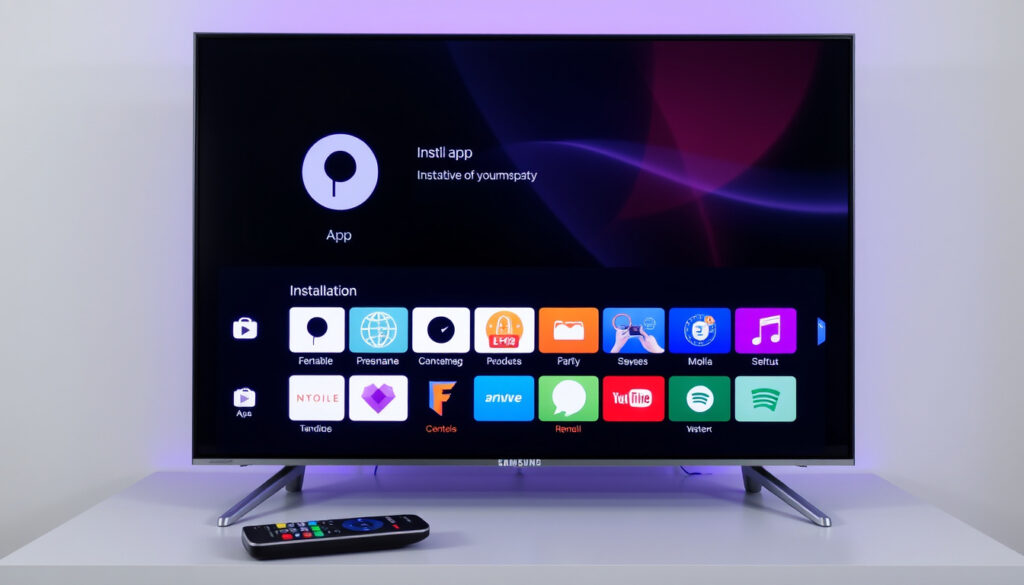
How to Add Apps on Samsung TV: Step-by-Step Guide 2025
There’s a reason Samsung smart TVs have been the go-to for streaming enthusiasts: they make adding apps almost effortless, whether you’re setting up a brand-new 2025 model or dusting off a TV from 2016. This guide walks through the official steps endorsed by Samsung support and tackles the common hiccups that can trip you up along the way.
Samsung TV models with app support (2016–2025): All models 2016 and later ·
Pre-installed apps: Netflix, YouTube, Prime Video, Samsung TV Plus ·
Apps in Smart Hub: Over 200 ·
Operating system: Tizen
Quick snapshot
- Press Home → APPS → Search icon → Install (Samsung Support India)
- After install, choose Add to Home above Install button (Samsung Support Jordan)
- Clearing Smart Hub cache resolves many install issues (Samsung Support Philippines)
- Apps not in Store cannot be installed via normal methods (Tizen Developer)
- Whether all 2025 models share the same app-menu layout
- Exact sideloading procedure on latest Tizen versions
- Regional differences in the location of the Search icon
- Whether the ‘Add to Home’ option appears for all apps
- First Samsung TV with apps: 2010 (Samsung Apps) (Wikipedia)
- Smart Hub introduced: 2016 (Samsung US Support)
- All models 2016+ support app installation (Samsung YouTube)
- Samsung’s Smart Hub continues to integrate apps, search, and settings
- 2025 models may shift button labels (e.g., Apps icon vs. APPS)
- Expect more pre-installed streaming services
The steps haven’t changed much since 2016. If you know how to press Home and use a search icon, you’re already 90% done.
Five key facts about Samsung TV app installation:
| Samsung Smart TV OS | Tizen |
| First year apps available | 2010 (Samsung Apps) |
| TVs without Apps button (pre-2016) | Use Smart Hub button on remote |
| Maximum apps installed | Model-dependent, typically unlimited |
| Official support page | Samsung Support India |
How do I download apps on my Samsung TV?
Steps to install: 3 · Time: 2 minutes · Requires: Internet, remote
- Press the Home button on your remote.
- Navigate to APPS (or Smart Hub icon on 2025 models).
- Use the Search icon to find the app by name.
- Select the app and choose Install.
Navigating to Smart Hub
Press the Home button on your remote. Samsung’s official support instructions confirm this is the starting point.
On most 2016–2024 models, you’ll see the APPS icon on the left side of the Home screen. On 2025 models, look for a Smart Hub icon instead. Tap it to open the app store.
Searching for an app
Inside the APPS screen, tap the Search icon – it’s typically in the top-right corner. Samsung’s YouTube tutorial also shows using the search function to find apps by name (Samsung YouTube). Type the app name using the on-screen keyboard.
Installing the app
Select the app from the search results. You’ll see a description, screenshots, and the Install button. Press it, wait for the download to finish, then press Home again and choose the app to open it.
The implication: the official flow is the only reliable method across all supported models.
Where is the App Store on my Samsung TV?
The location of the App Store varies slightly by model year and region, but the core entry point remains the same.
Finding the App Store on 2016–2024 models
Press Home, then scroll left to the APPS icon. Samsung’s Jordan support page notes that the search icon sits on the left side of the Home screen in that region’s UI (Samsung Support Jordan). In the Philippines, it’s in the top-right corner of the APPS screen. The App Store is fully integrated – you don’t need a separate app for it.
App Store location on 2025 models
On 2025 Samsung TVs, the Apps label may appear as a small icon inside the Smart Hub menu. Samsung’s official YouTube guidance still recommends pressing Home then selecting Apps. If you can’t find it, try looking under the Smart Hub icon – it’s a house-shaped symbol.
Why this matters: The design keeps changing, but the logic is stable: once you’re in the app hub, you’re in the store.
Why can’t I install any apps on my Samsung TV?
When the Install button refuses to work or the App Store seems empty, three common culprits are at play.
Check firmware updates
Outdated firmware can block app installations. Go to Settings → Support → Software Update and select Update Now. Samsung’s India support page emphasizes keeping your TV’s software current (Samsung Support India).
Verify internet connection
Unstable Wi-Fi may prevent downloads. Test your connection by opening a pre-installed app like Netflix. If it doesn’t load, reconnect to your network in Settings → General → Network.
Clear Smart Hub cache
Over time, the Smart Hub cache can corrupt. Samsung’s official troubleshooting recommends clearing it: go to Settings → Support → Device Care → Self Diagnosis → Reset Smart Hub. This doesn’t delete your apps – it resets the hub’s interface.
If none of these work, you may be on a pre-2016 model that lacks full app support. Check your TV’s firmware compatibility before investing time.
The pattern: outdated firmware and cache issues are the most common blockers, and both are easily resolved.
How do I install apps not listed in the App Store?
If the app you want isn’t found in Smart Hub, your options are limited. Samsung locks the ecosystem to protect stability and security.
Using the Downloader app
The Downloader app is a utility that lets you install official Samsung apps that may not appear in the standard Smart Hub search. It is not a tool for pirated content – only apps approved by Samsung can be installed through it.
Limitations
Apps not listed in the Store cannot be installed through normal methods. Sideloading APK files is not possible on Tizen-based Samsung TVs.
How do I add apps to my Samsung TV homepage?
After installation, you can pin apps to the Home screen for one-click access.
Rearranging apps on the Home screen
From the Home screen, navigate to APPS and highlight the app you just installed. Press and hold the remote’s Enter button until a menu appears. Select Add to Home Screen. Samsung Jordan’s support page confirms this step: “After installation, select Add to Home to place the app on the Home Screen” (Samsung Support Jordan).
Adding apps to the favorites row
Some 2025 models allow you to create a Favorites row. While in the Home screen, scroll to the far right and select Edit. Drag the app icon from the Downloaded App section into the favorites area.
Why is there no apps button on my Samsung TV?
It’s a common scare, but almost always solvable.
Common causes for missing Apps button
If you own a TV manufactured before 2016, it likely lacks a dedicated Apps button. Instead, use the Smart Hub button on the remote – it’s often labeled with a house or a ‘S’ symbol.
Alternative ways to access apps
On 2025 models, the Apps button may be hidden inside the Smart Hub overlay. Press Home, then look for a small grid icon. If the button is simply missing from the remote, you can remap a different button using the remote’s settings menu.
What this means: for 2016 and later models, the Apps button is accessible through the Home screen, even if not labeled explicitly.
Clarity: what’s confirmed vs. what’s still in flux
Confirmed facts
- Samsung TV app installation requires Smart Hub (Samsung Support Philippines).
- Press Home then select APPS on most 2016+ models (Samsung Support India).
- Apps not listed in Store cannot be installed through normal methods (Tizen Developer).
What’s unclear
- Whether all 2025 models have the same app menu layout.
- Exact procedure for sideloading on latest Tizen versions.
- Regional variations in the Search icon’s position.
- Whether clearing Smart Hub cache fixes all install issues.
What Samsung support and users say
“Press the Home button on your remote. Then select APPS. Use the Search icon to find the app you want. Select Install.”
Samsung Support India (official product support page)
“After installation, select Add to Home to place the app on the Home Screen. You can also access the app later under Downloaded App from the Home screen.”
Samsung Support Jordan (official regional support page)
For users of 2022 and newer models, the process is identical – but a Reddit user in r/SmartThings noted that on some 2022 TVs the Install button was temporarily grayed out after a firmware update, a glitch fixed by a subsequent patch.
Summary: what it means for you
Adding apps to your Samsung TV is a straightforward routine – three taps from Home, and you’re set. The only real friction comes from outdated firmware, a hidden button, or a TV built before 2016. For owners of 2016–2025 models, the clear path is: update the firmware, clear the Smart Hub cache if things go wrong, and always use the official App Store. For anyone trying to sideload unsupported software, the roadblock is deliberate – Samsung locks the ecosystem to protect stability and security. The choice: follow the official flow, or invest in an external streaming device like a Roku or Apple TV.
Related reading: How to Watch Apple TV on Roku: Setup, Cost & Troubleshooting · Best 50 Inch TV (2026): Top-Rated Models, Reviews & Buying Guide
For a detailed walkthrough, check out this detailed guide on downloading apps that covers finding and installing apps on older Samsung models as well.
Frequently asked questions
Can I install any Android app on my Samsung TV?
No. Samsung TVs run the Tizen operating system, not Android. Only apps developed for Tizen and published in the Smart Hub store are supported. Sideloading APK files is not possible through normal methods (Tizen Developer).
How do I update apps on my Samsung TV?
Apps update automatically by default. To check manually, go to APPS → Settings (gear icon) → Updates → Update All. Individual updates appear in the same menu.
How do I remove apps from my Samsung TV?
Go to APPS → Settings (the gear icon), select the app you want to remove, and choose Delete. Samsung’s Jordan page also shows this uninstall path: “Select Apps, then App Settings, then choose the app and Delete” (Samsung Support Jordan).
Do I need a Samsung account to install apps?
No, not for installation. However, some apps (like Netflix or Amazon Prime) require their own account to stream content. A Samsung account is optional but useful for app syncing across devices.
Why are some apps grayed out on my Samsung TV?
Grayed-out apps usually indicate one of three things: the app is not available in your region, your TV model is not compatible, or the app requires a firmware update. Check your TV’s software and region settings.
How do I reinstall an app on my Samsung TV?
Delete the app first, then follow the standard install steps. Press Home, go to APPS, search for the app, and select Install.
What is the Downloader app for Samsung TV?
The Downloader app is a utility that lets you install official Samsung apps that may not appear in the standard Smart Hub search. It is not a tool for pirated content – only apps approved by Samsung can be installed through it.
How do I get the YouTube app back on my Samsung TV?
YouTube is pre-installed on most Samsung TVs. If it’s missing, go to APPS → Search for “YouTube” and select Install. If it’s still not found, reset the Smart Hub – go to Settings → Support → Self Diagnosis → Reset Smart Hub.
More related posts
 Felon Meaning: Legal, Medical, and Movie Definitions
 Cast Of Running Point
 Solar Powered Watches: Are They Worth It? Pros, Cons & Lifespan
 Blackhawks TV Schedule 2025-26: Channels & Streaming Guide
 Cast Of The Thursday Murder Club (film)
 College Football Games Today Live: Schedule, TV & Scores
Woman Of The Hour Cast
College Football Games Today Live: Schedule, TV & Scores
Woman Of The Hour Cast
 Cast Of A Simple Favor 2
